Help & About
Interface Guide
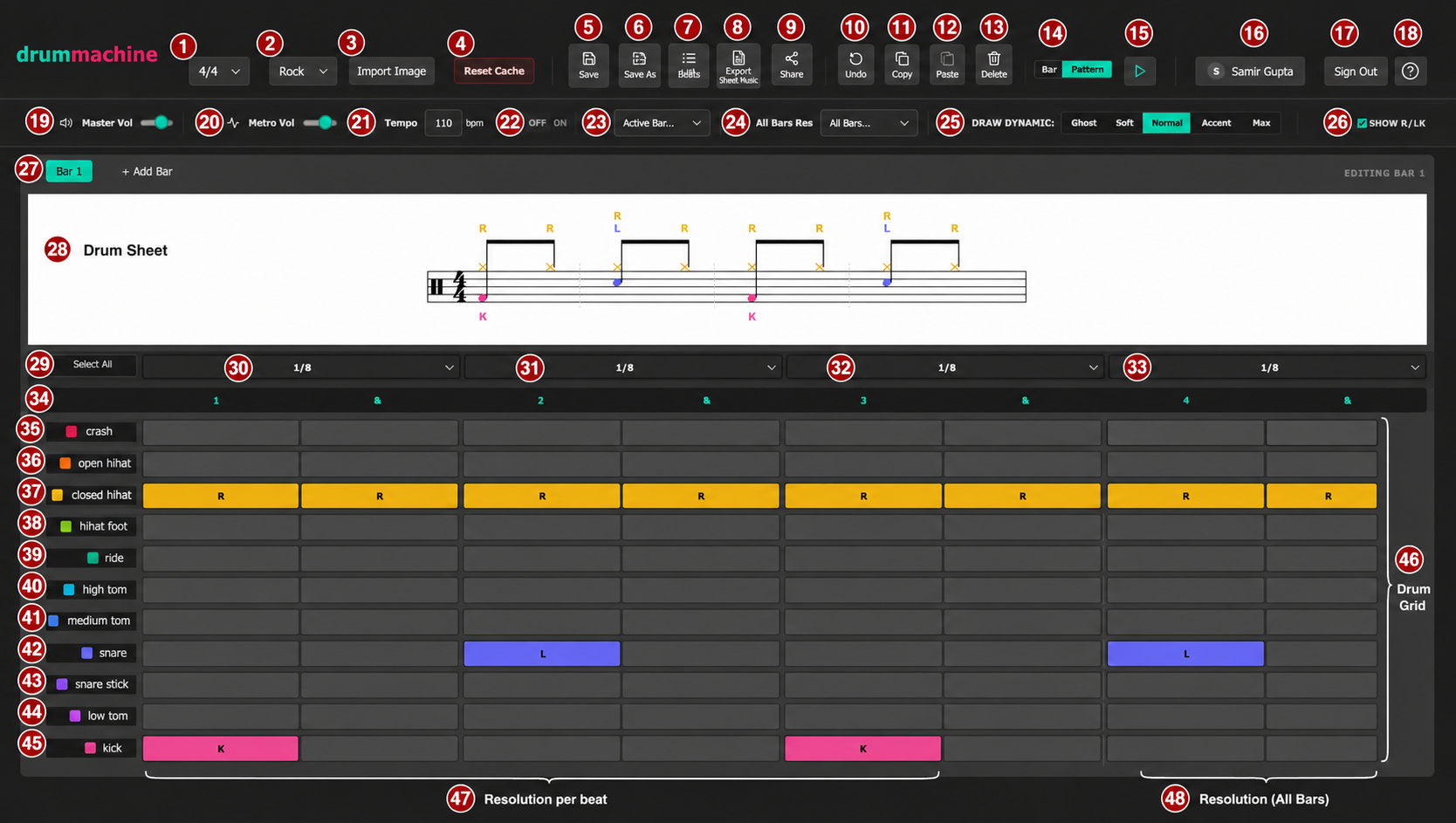
Please save your reference image as ui-guide.png in the public/ folder.
1Time Signature - Change the time signature (e.g., 4/4, 3/4).
2Genre / Style - Select a preset drum pattern based on a genre.
3Import Image - Upload an image of a drum sheet to extract the pattern.
4Reset Cache - Clear local browser cache and reset the app.
5Save - Save your current pattern to the cloud.
6Save As - Save a copy of the current pattern as a new beat.
7Beats - Access your library of saved patterns.
8Export Sheet Music - Generate and download a PDF/Image of your drum sheet.
9Share - Generate a shareable link for your current pattern.
10Undo - Revert the last change you made to the grid.
11Copy - Copy the current bar's pattern.
12Paste - Paste the copied pattern into the selected bar.
13Delete - Clear the pattern or delete the current bar.
14Playback Mode - Toggle playback between looping the current "Bar" or the whole "Pattern".
15Play / Stop - Start or stop the sequencer playback.
16User Profile - Displays the currently signed-in Google account.
17Sign Out - Log out of your account.
18Help - Open this help and documentation page.
19Master Vol - Adjust the overall master volume of the drum machine.
20Metro Vol - Adjust the volume of the metronome click.
21Tempo (BPM) - Set the tempo in Beats Per Minute.
22Metronome Toggle - Turn the metronome click ON or OFF.
23Active Bar Selector - Select which bar in a multi-bar pattern is currently active.
24All Bars Resolution - Globally change the grid resolution (e.g., 1/16, 1/8) for all bars.
25Draw Dynamic - Set the velocity/loudness for new notes (Ghost, Soft, Normal, Accent, Max).
26Show R/L/K - Toggle the visibility of sticking indicators (Right/Left/Kick) on the drum sheet.
27Bar Navigation - Switch between bars or use "+ Add Bar" to create a new bar.
28Drum Sheet Display - Visual representation of your pattern in standard musical notation.
29Select All Resolutions - Apply a specific grid resolution to all 4 beats simultaneously.
30Beat 1 Resolution - Change the grid resolution specifically for the 1st beat of the bar.
31Beat 2 Resolution - Change the grid resolution specifically for the 2nd beat of the bar.
32Beat 3 Resolution - Change the grid resolution specifically for the 3rd beat of the bar.
33Beat 4 Resolution - Change the grid resolution specifically for the 4th beat of the bar.
34Beat Markers - Visual indicators for the beats and subdivisions (1 & 2 & 3 & 4 &).
35Crash Cymbal - The track row for the crash cymbal.
36Open Hi-hat - The track row for the open hi-hat.
37Closed Hi-hat - The track row for the closed hi-hat.
38Hi-hat Foot - The track row for the pedal hi-hat.
39Ride Cymbal - The track row for the ride cymbal.
40High Tom - The track row for the high tom.
41Medium Tom - The track row for the medium tom.
42Snare Drum - The track row for the snare drum.
43Snare Stick - The track row for the cross-stick/rimshot.
44Low Tom - The track row for the low tom (floor tom).
45Kick Drum - The track row for the bass drum (kick).
46Drum Grid - The main sequencer area where you click to add, edit, or remove drum hits.
47Resolution per Beat - Indicates the subdivision columns within a single beat.
48Resolution (All Bars) - Represents the total width of the grid based on the selected resolution.
How to use Beatstave
- Click on the grid squares to add or remove drum hits for each instrument.
- Use the Play/Pause button to hear your sequence loop.
- Adjust the BPM slider to speed up or slow down the tempo.
- Use the individual track controls on the left to adjust volume, mute, or solo specific instruments.
- Sign in with Google to save your patterns and settings securely in the cloud.
Keyboard Shortcuts
Play / Pause
Space
Clear Pattern
C
Mouse Controls (Drum Grid)
Normal Hit
Single Click
Right Hand Hit (R)
Double Click
Left Hand Hit (L)
Triple Click
Contact Support
Have a feature request, found a bug, or just want to say hi? We'd love to hear from you.